Exonita POS · Restaurant · Captain guide
Captain
Take a table's order on your phone, send it to the kitchen, add to it, move guests to another table and ask the counter for the bill.
What you can do
- See every table and which ones are free
- Take an order and add notes for the kitchen
- Send dishes to the kitchen
- Move a table's order to another table
- Ask the counter for the bill
Ask your administrator
- Taking payment, discounts and cancelling bills are done at the counter by the cashier.
- If a dish shows Not available, tell the guest and ask the kitchen when it will be back.
Your administrator can change what your login can see. If a button in this guide is missing for you, ask them.
Your day at a glance
Task 1
Sign in on your phone
Open the Captain screen with your own login.
WhereYour phone's browser
-
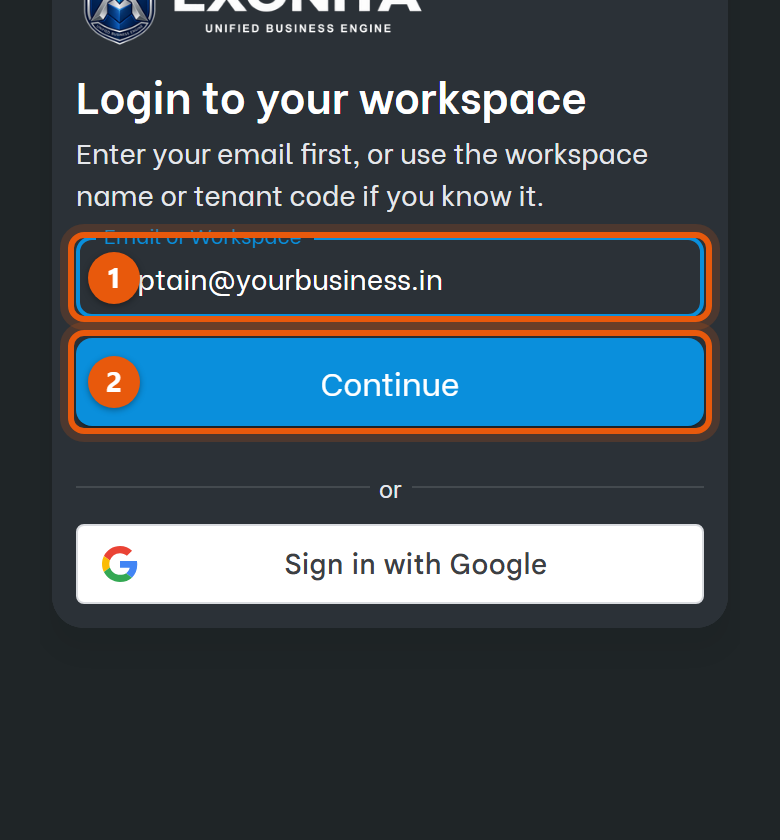
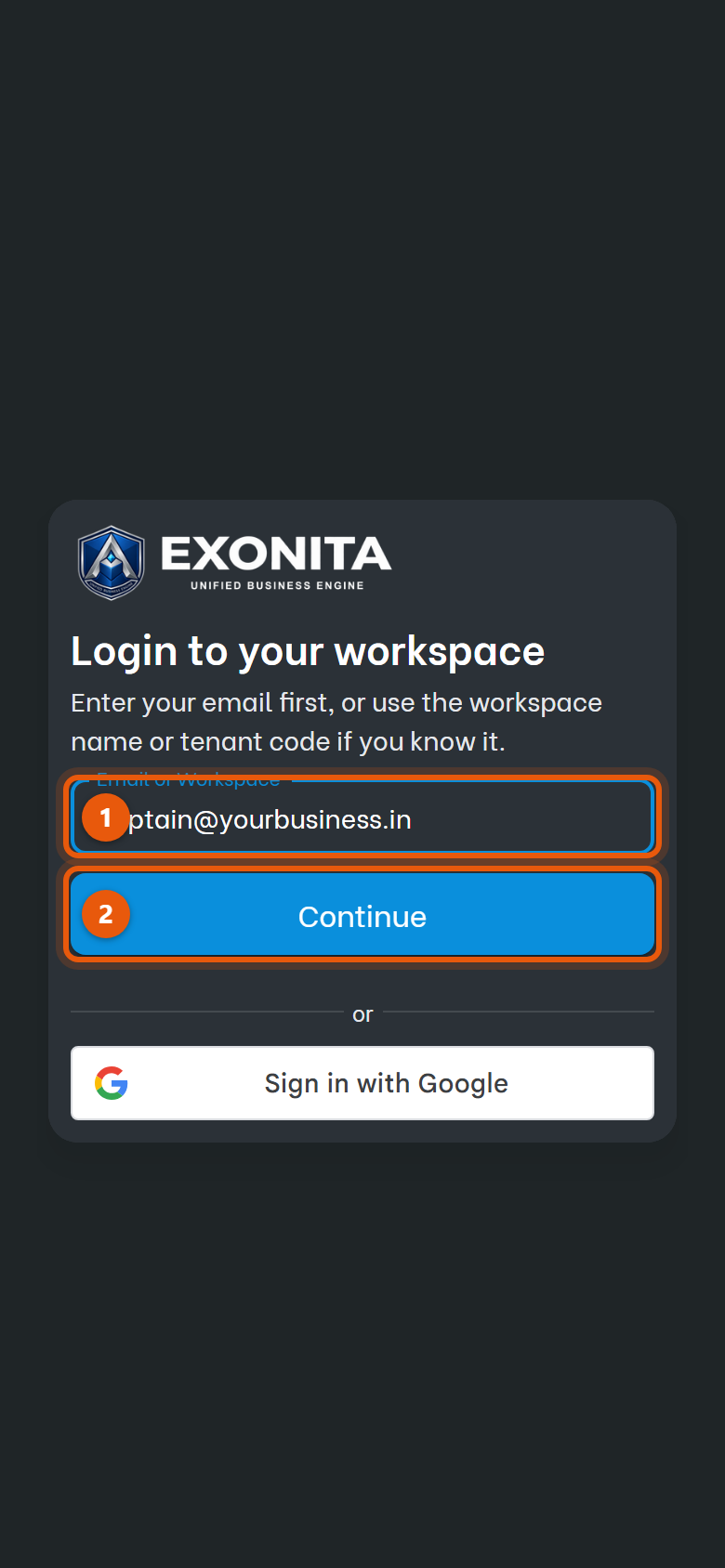
Open the address your manager gave you in your phone's browser. Enter your email in Email or Workspace and select Continue, then enter your password.
You'll see: You are signed in.
TipAdd the page to your home screen so it opens like an app next time.
Task 2
Open your tables
See which tables are free and which have guests.
WhereCaptain (table orders)
-
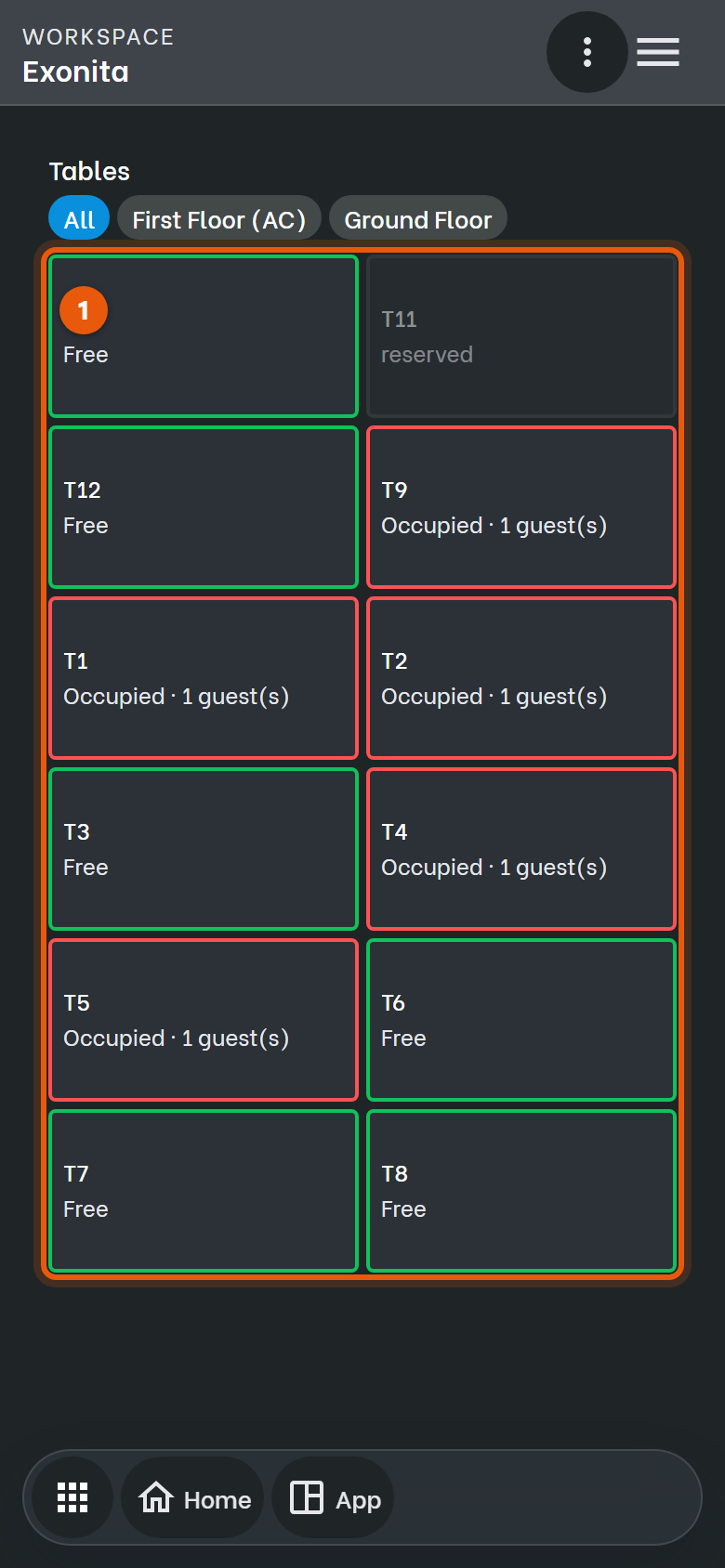
Open Captain (table orders).
You'll see: Your tables appear. Free tables are green; Occupied and reserved tables are red.
Task 3
Take an order
Add what the guests ordered to their table.
WhereCaptain → table
-
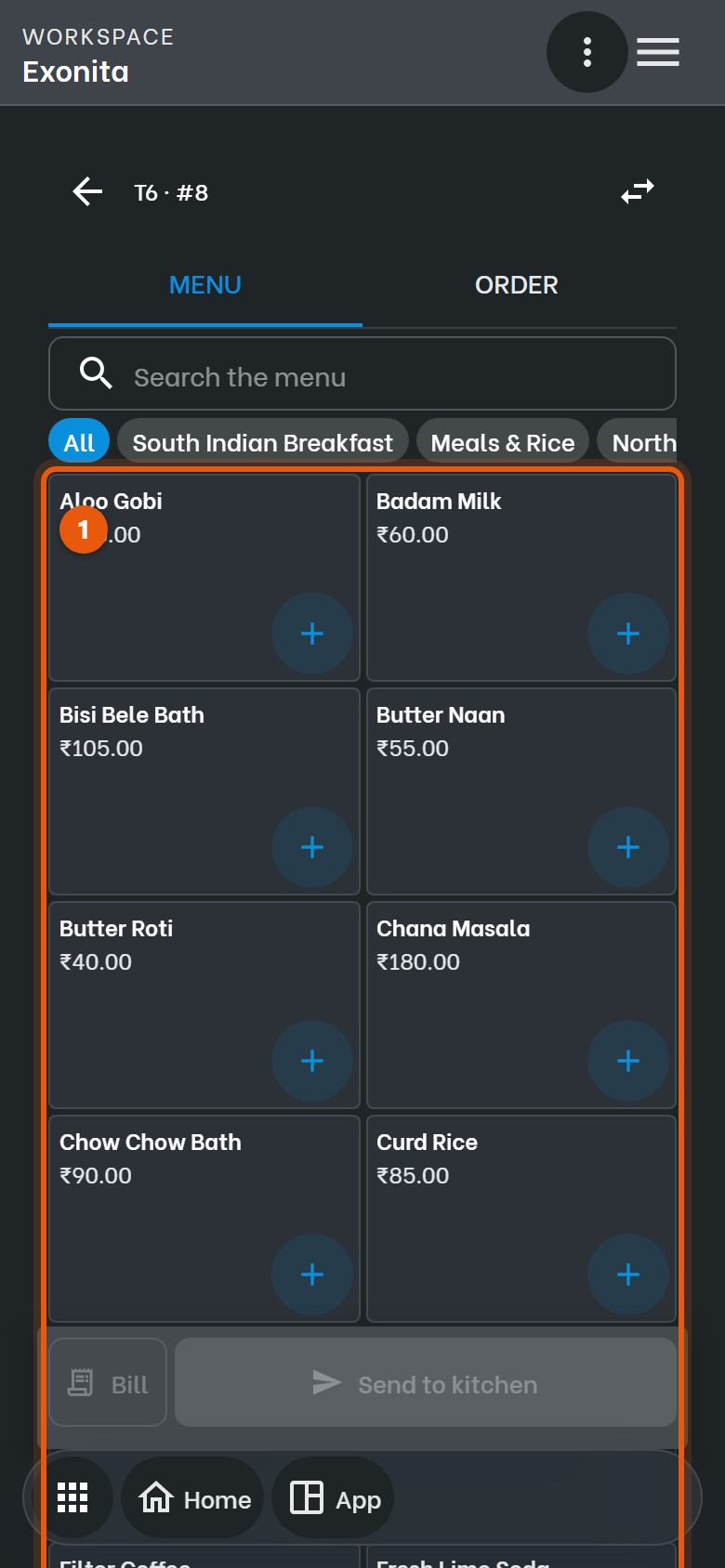
Tap the guests' table.
You'll see: The table's menu opens. The counter and the kitchen see the order straight away.
-
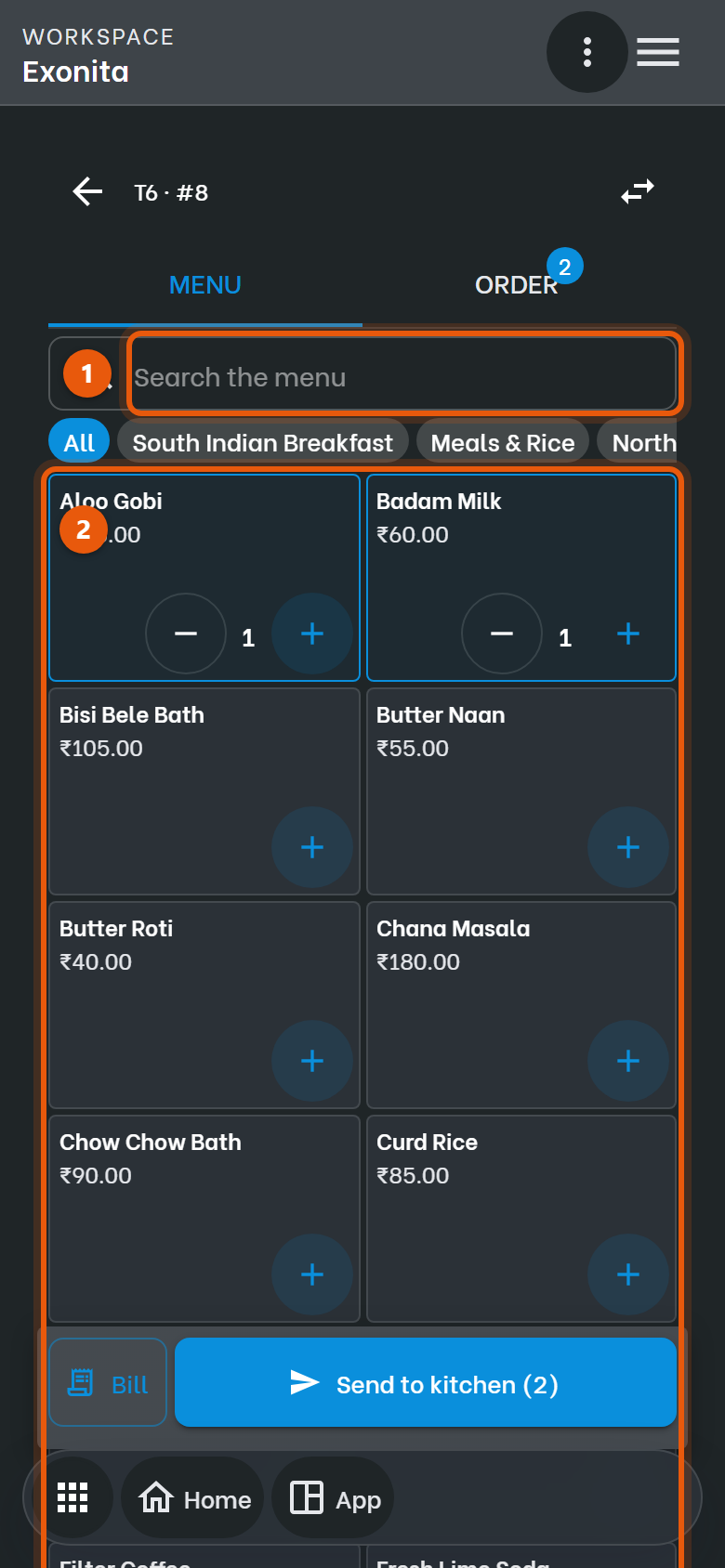
Tap a dish to add it, and tap again to add one more. Use Search the menu or a category to find it fast.
You'll see: The count on the Order tab goes up.
-
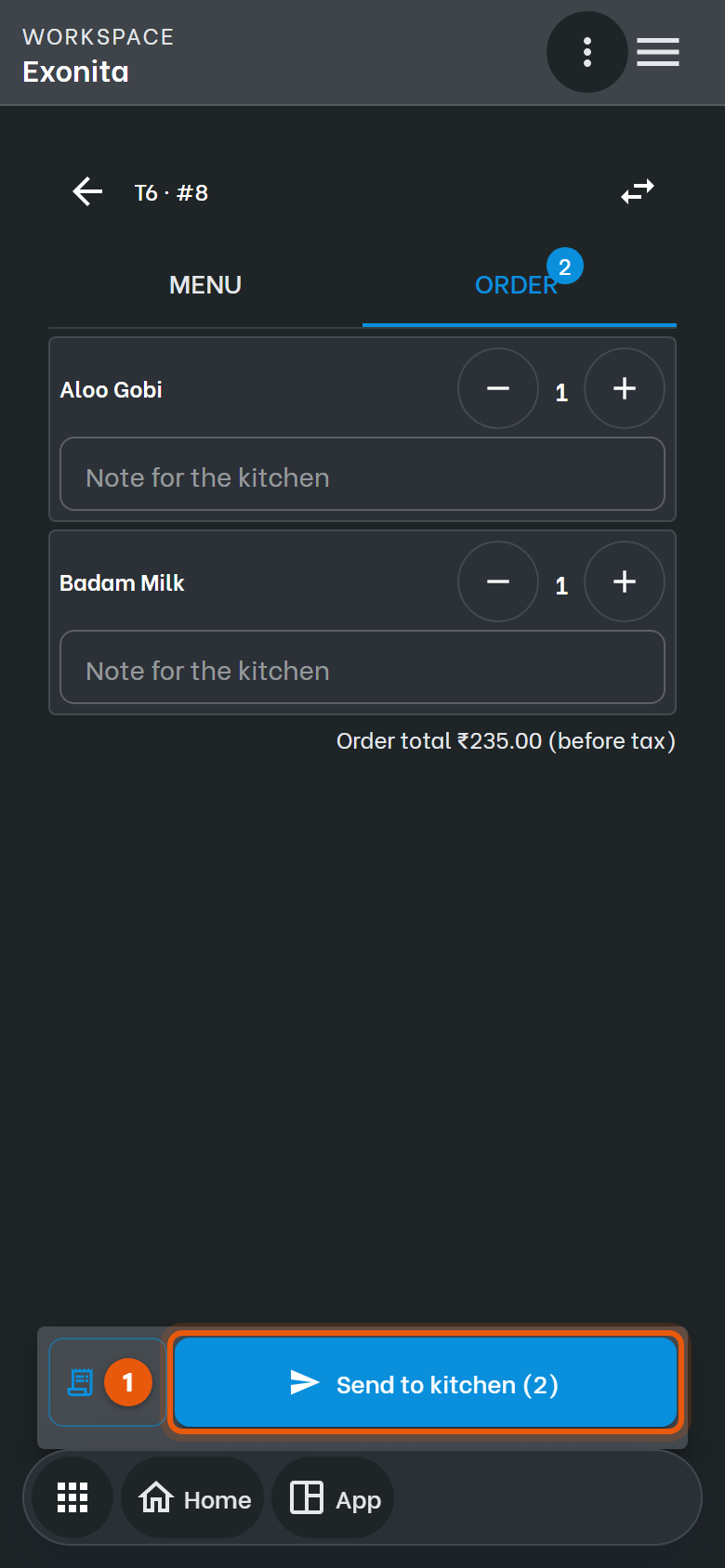
Tap the Order tab to check the order. Use + and − to change quantities, and add a Note for the kitchen if the guest asks for something special.
You'll see: The order shows each dish with its quantity.
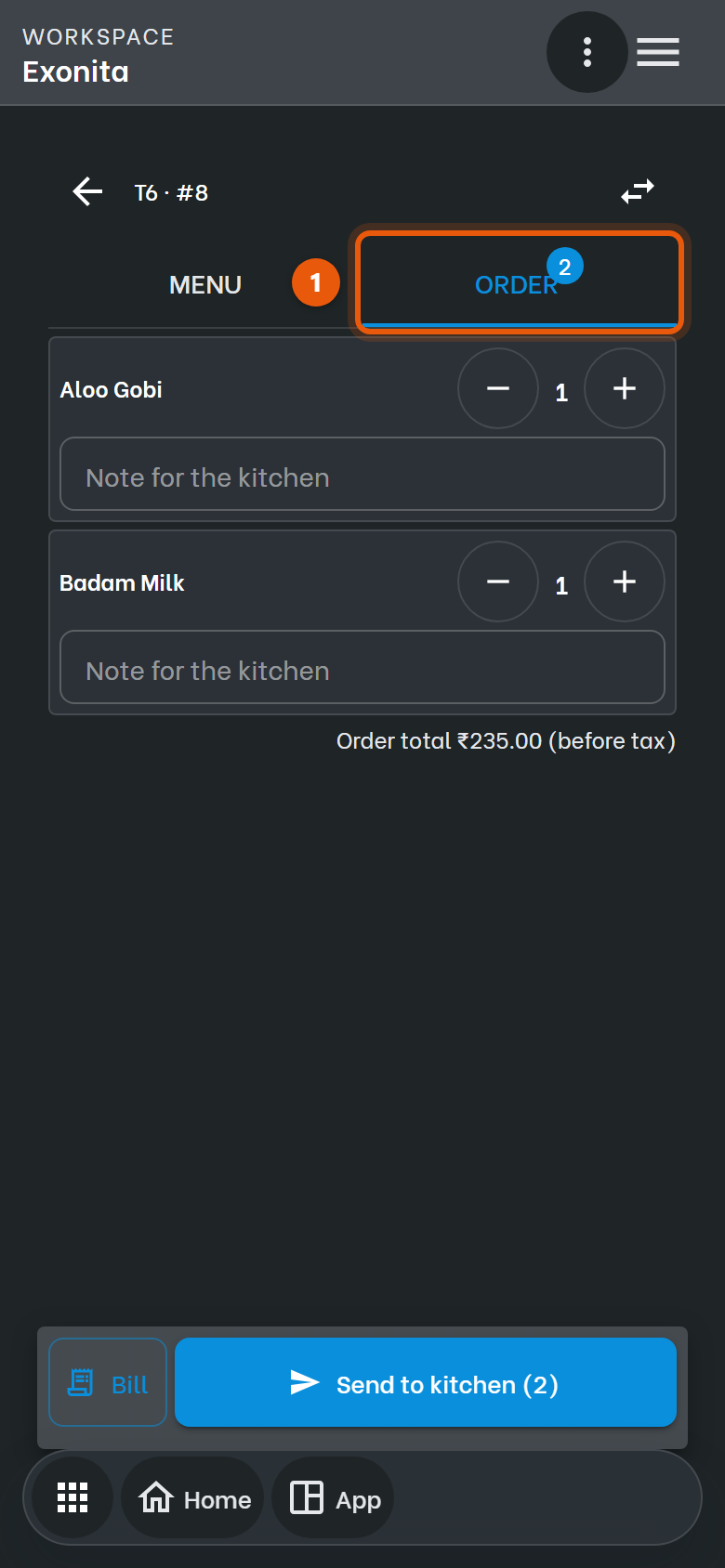
TipNotes go to the kitchen on the ticket, for example
less spicyorno onion.
Task 4
Send the order to the kitchen
Print the order at the right kitchen station.
WhereCaptain → table → Order
-
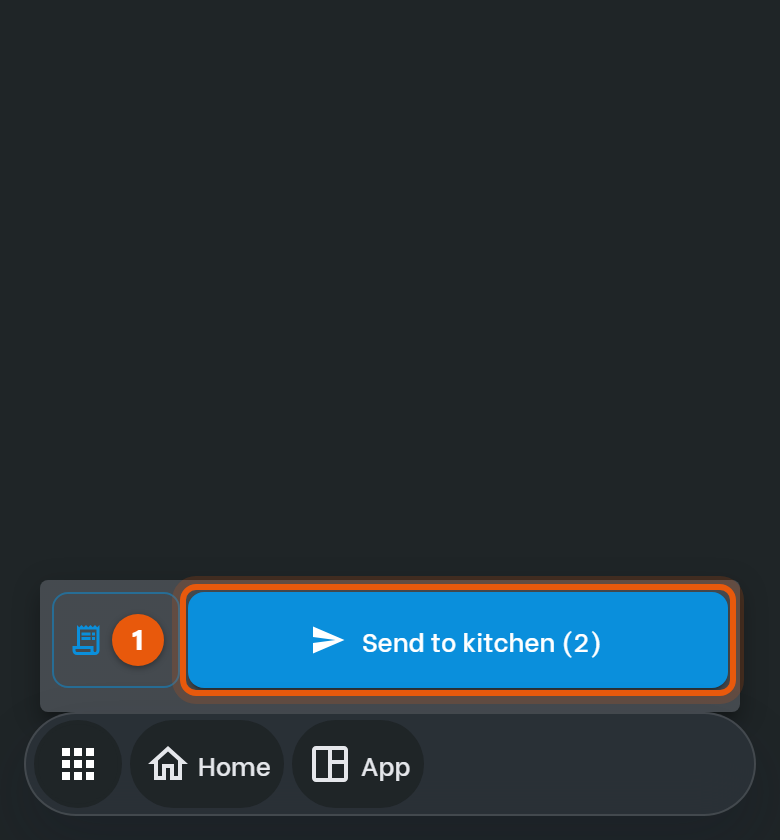
Tap Send to kitchen.
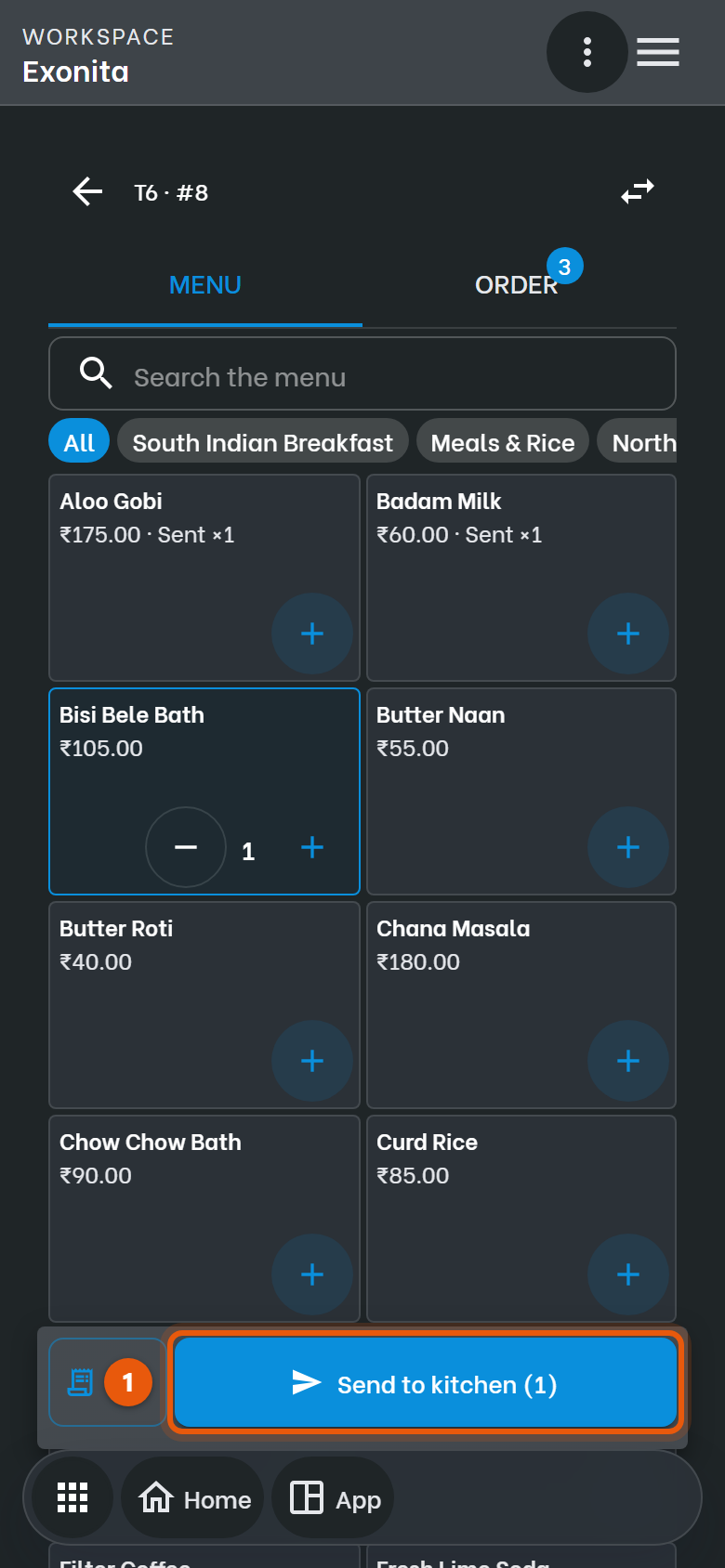
You'll see: The ticket prints at the right kitchen station. Sent dishes are marked Sent × with their quantity.
-
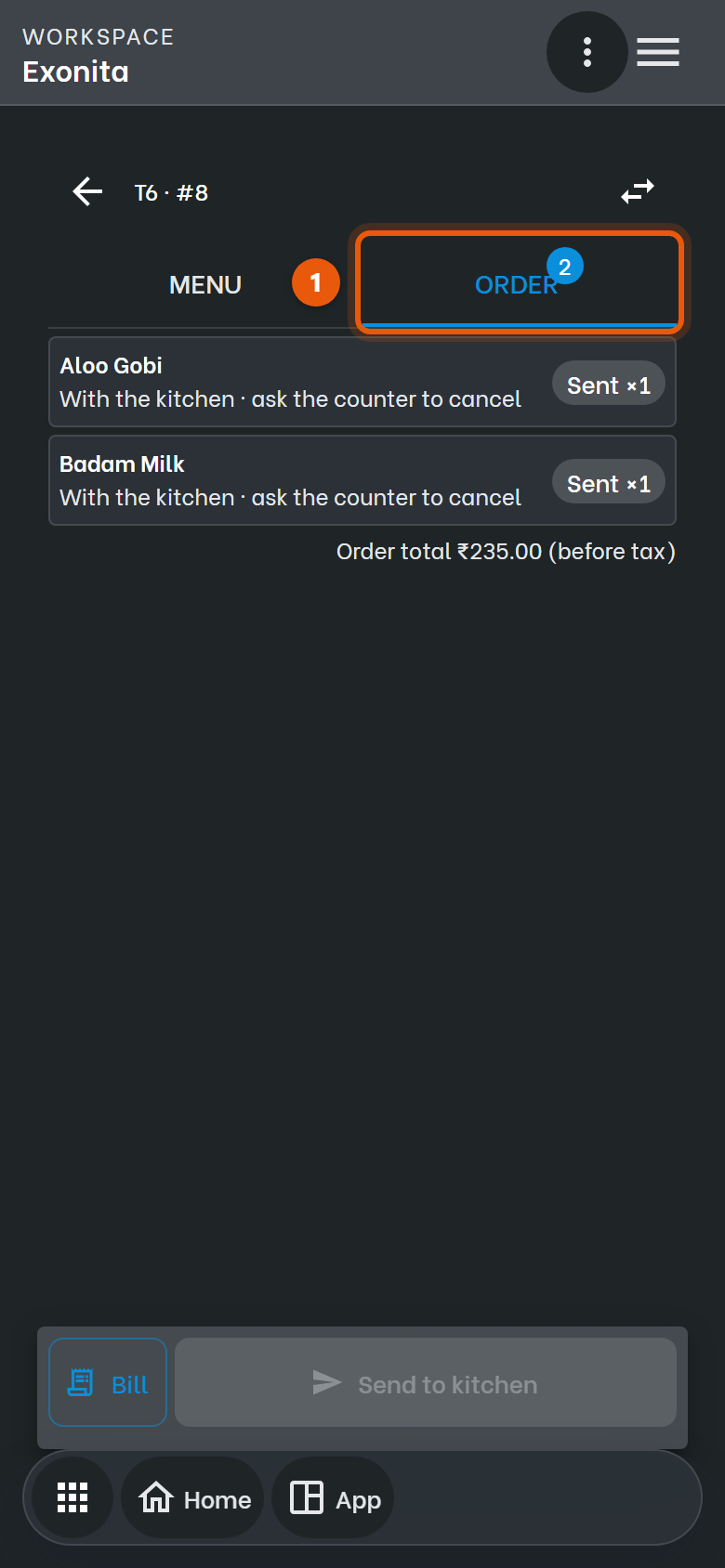
Check that the dishes now show as sent.
You'll see: The order is with the kitchen.
Task 5
Add to a running order
Guests ordered more after the first round.
WhereCaptain → table
-
Open the same table, tap Menu, add the new dishes and tap Send to kitchen again.
You'll see: Only the new dishes go to the kitchen.
Task 6
Move guests to another table
Keep the order when guests change tables.
WhereCaptain → table
-
Tap the Move table icon at the top, then choose the new table.
You'll see: The order moves to the new table, and the old table is free again.
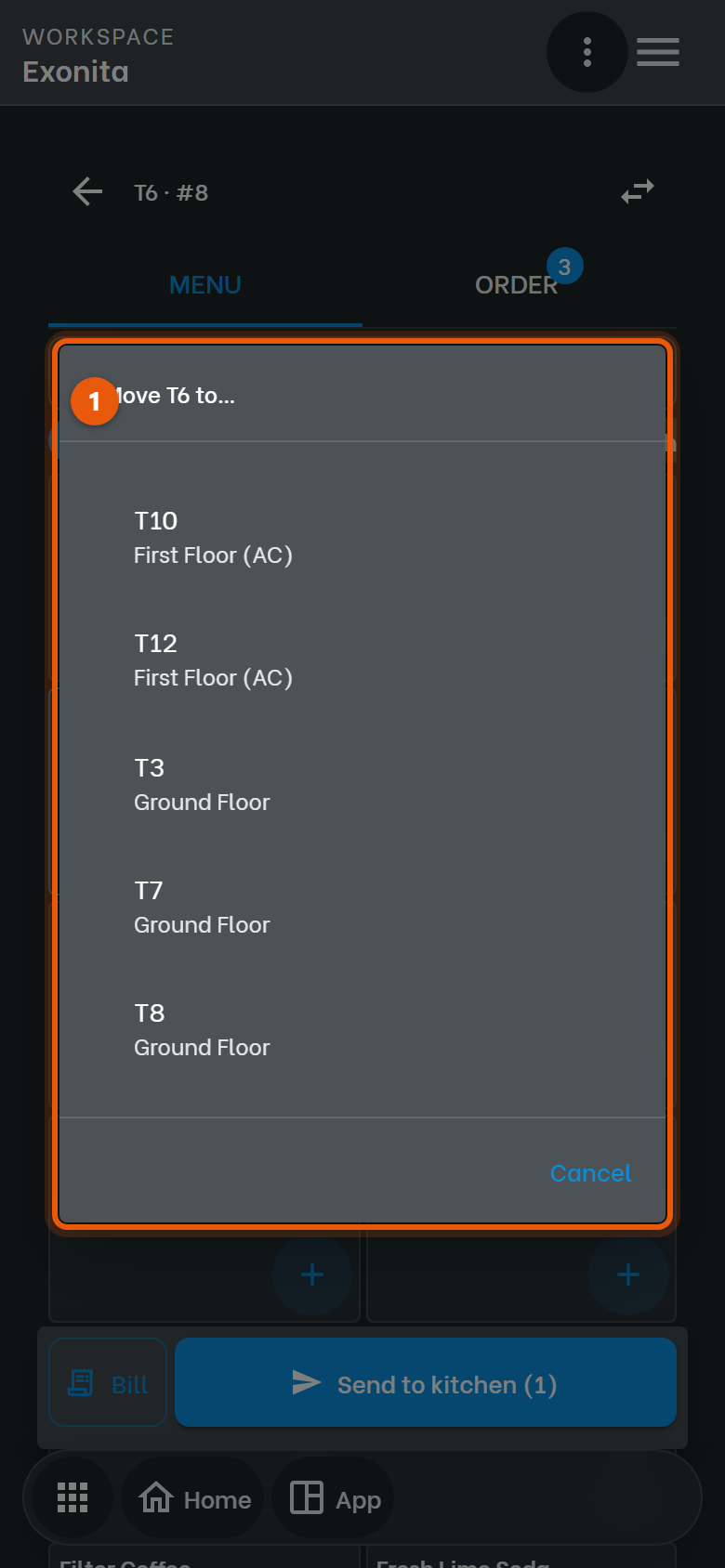
TipOnly free tables are listed.
Task 7
Ask for the bill
Tell the counter the guests are ready to pay.
WhereCaptain → table → Order
-
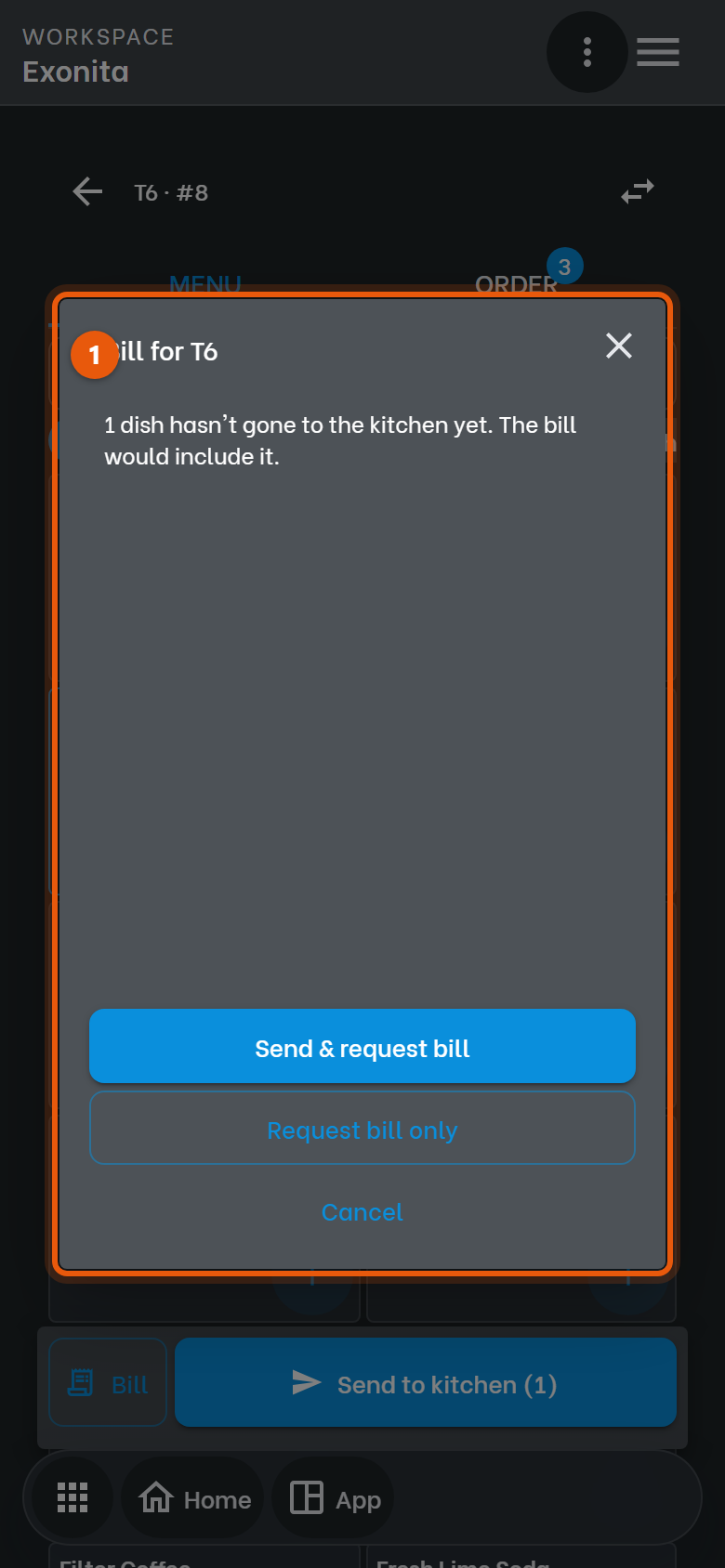
When the guests are done, tap Bill.
You'll see: If some dishes were never sent, you're asked whether to Send & request bill or Request bill only.
-
Confirm.
You'll see: The button changes to Bill requested with the time, and the counter prints the bill.
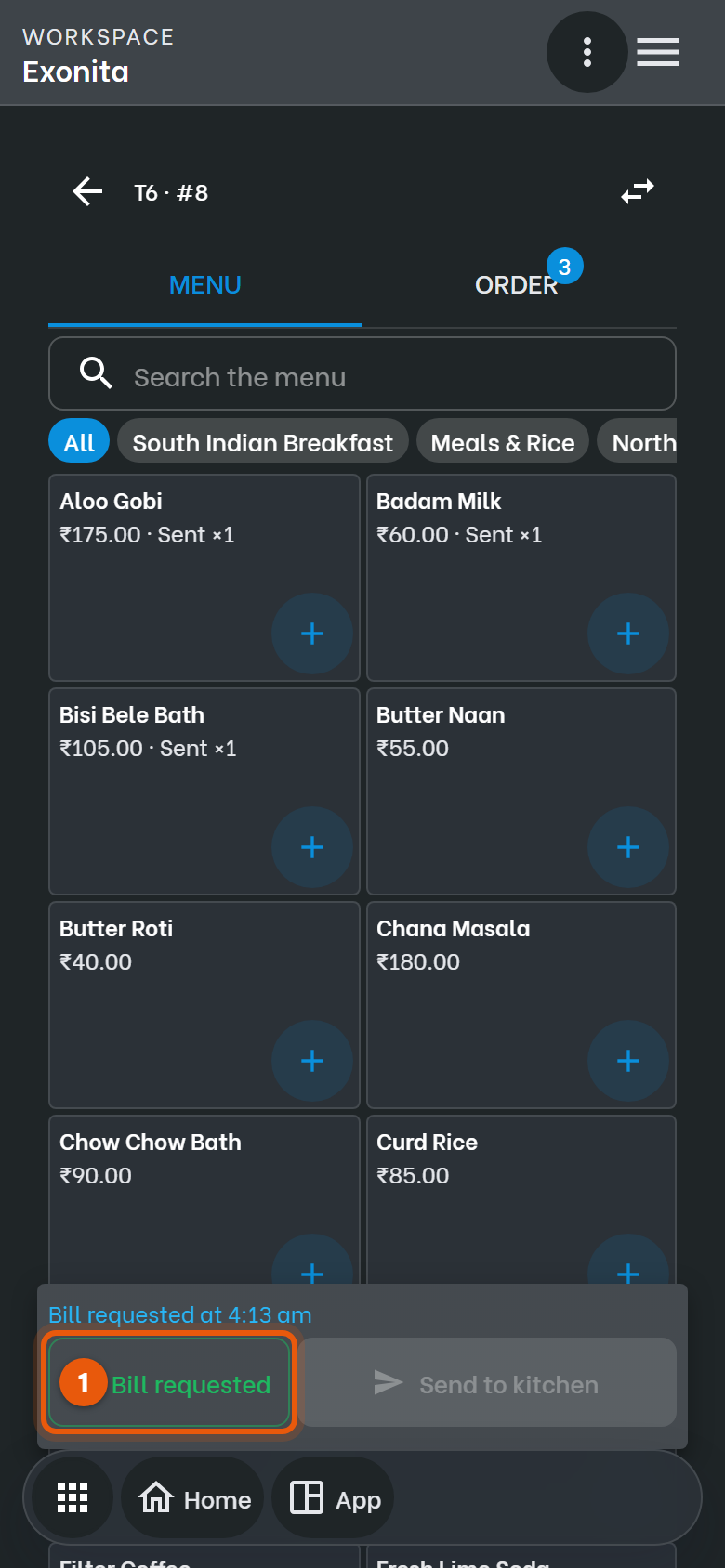
ImportantYou can't take payment on the Captain screen. The cashier settles the bill at the counter.